Sign in
Open the advertiser login and enter the email and password on the account. The security check has to finish before Sign in turns on. If the check expires, complete it again. A sign-in without that check is rejected.
Google sign-in is on the same screen. It only works for an email that already belongs to an advertiser account. A mailbox used for an agent or admin account cannot be reused as an advertiser.
- Go to the advertiser login.
- Enter the account email and password.
- Wait until the security check completes and Sign in is available.
- If two-factor is on, enter the 6-digit code from email. The code expires in 10 minutes.
Forgot password emails a code to that mailbox. Enter the code and a new password on the next step. Forgot email matches an account from the name plus a phone number or website. Create an account asks for the company, name, email, website, and phone, then sends a verification code.
Receipts, review notes, and sign-in codes go to that mailbox. Use an inbox you actually read.
Left menu
After sign-in you land on Overview. The left sidebar is the map of the workspace. The header shows available funds and opens Billing when you click it. Search at the top finds campaigns, ads, and keywords.
- Home — Overview and Recommendations.
- Campaigns & ads — Campaigns, Ad groups, Ads, and Keywords.
- Reporting — Insights and Custom report.
- Targeting — Locations, Device, OS, Browser, and VPN.
- Settings — Change history, Ad schedule, and IP lists.
- Billing — Summary, Add funds, Billing address, and Activity. Payment methods appears only when saved cards are available.
- Account — Profile, Password, Security, and Notifications.
The signed-in email sits at the bottom of the sidebar. Log out under that email ends this browser session and returns you to the login page. It does not sign out other devices. Use Sign out everywhere on Security for that.
Overview
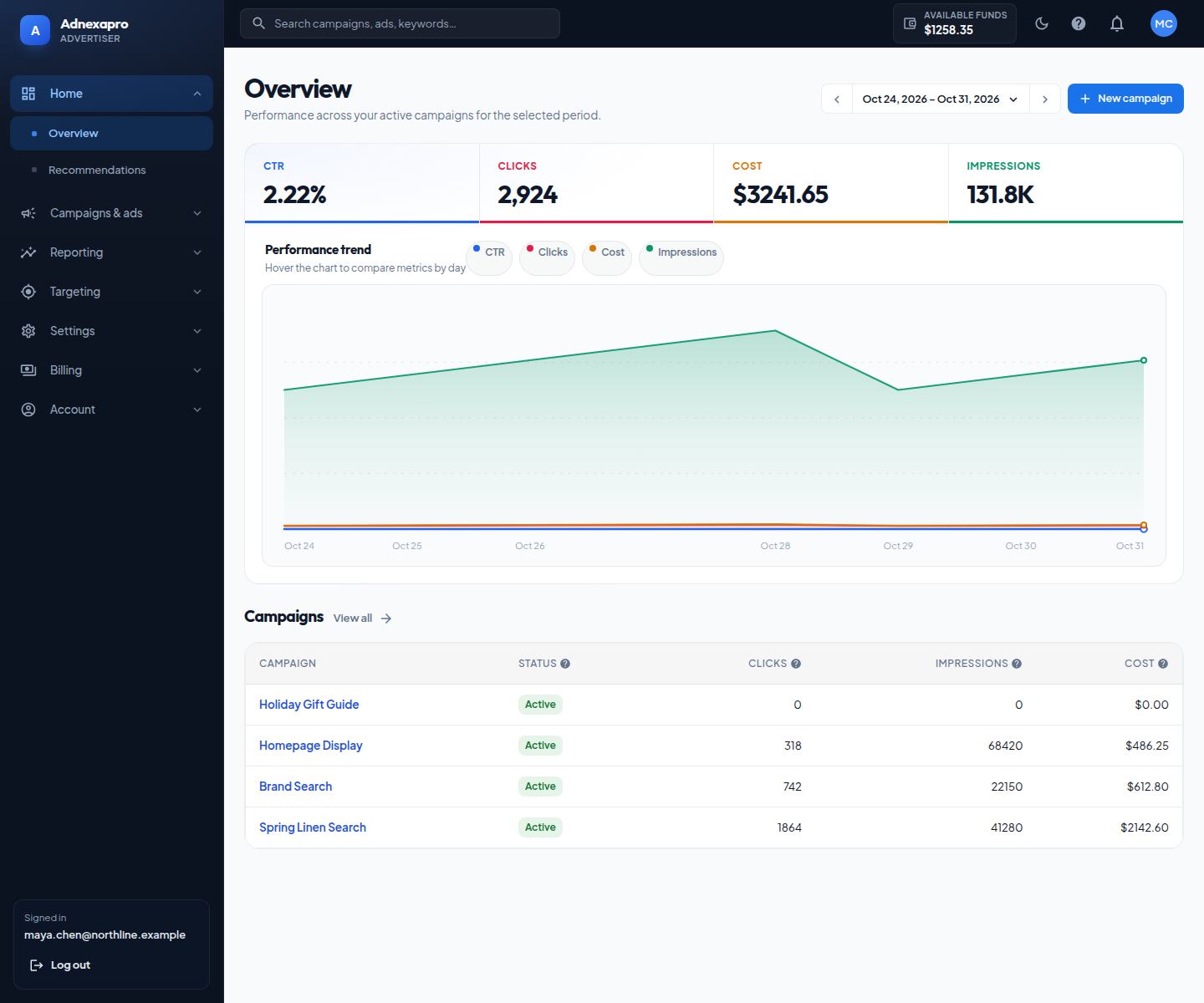
Overview is the home report. The date control at the top sets the range. Arrows move that same length of time backward or forward. Dates use the calendar day in your account timezone, written as Oct 24, 2026.
Four numbers sit above the chart:
- CTR — clicks divided by impressions for the range.
- Clicks — ad clicks in the range.
- Cost — spend in US dollars.
- Impressions — how often ads were shown.
The trend chart plots those series by day. Impressions, clicks, cost, and CTR do not share one scale, so a large impression line does not hide the others. The pills under the chart title show or hide a series. Hover a day to read the values together.
The campaign table under the chart lists each campaign’s status, clicks, impressions, and cost for the same dates. View all opens the campaign list. New campaign starts the create flow.
Recommendations, also under Home, lists suggested next steps such as adding funds, finishing the profile, or turning on two-factor. Each row links to the screen that does the work.
Campaigns
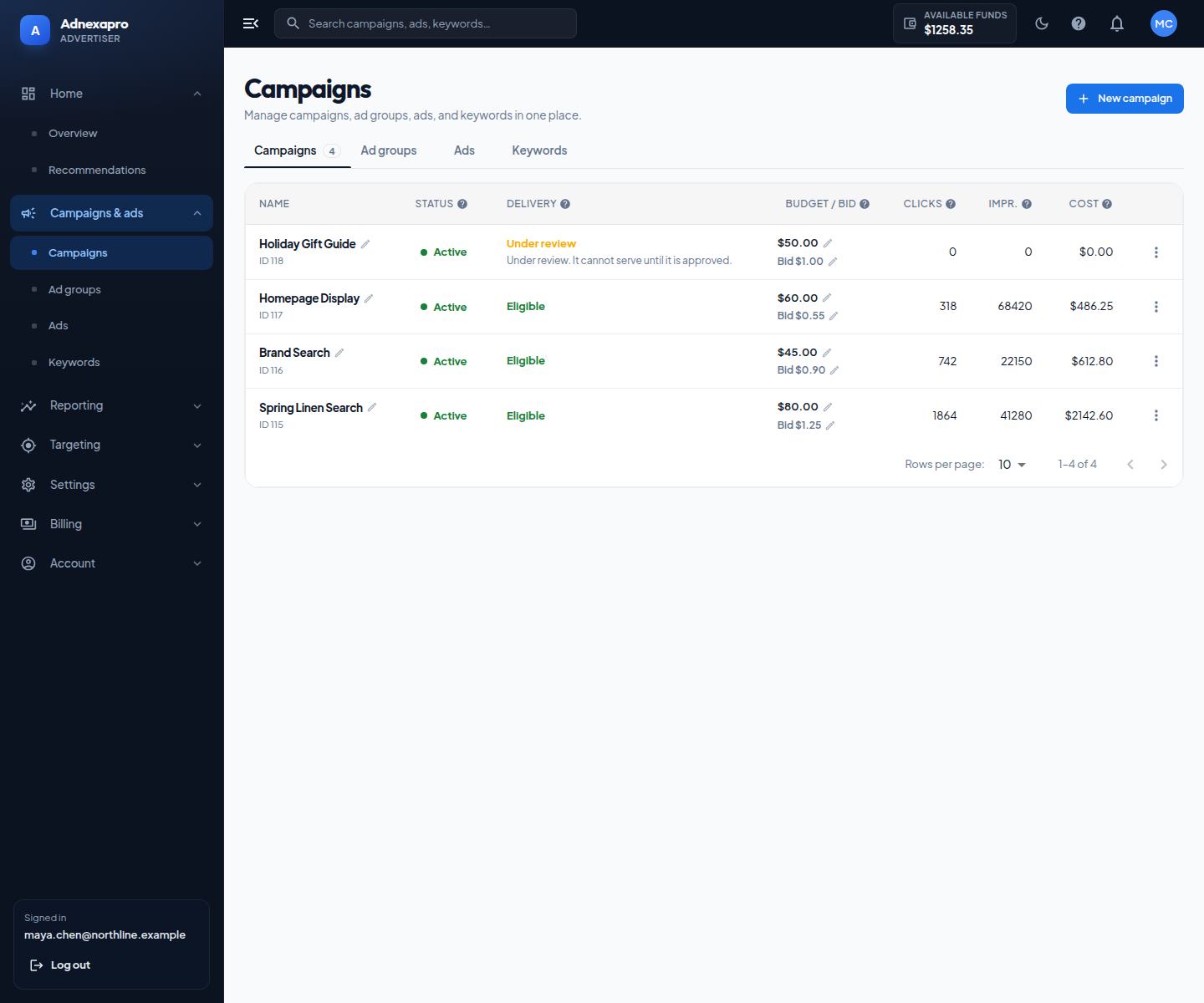
A campaign is the container for budget, bid, ads, and targeting. Open Campaigns in the sidebar, or choose New campaign on Overview or on the campaign list. The builder is five steps. Nothing is saved until you press Create campaign on the last step.
Step 1. Campaign info
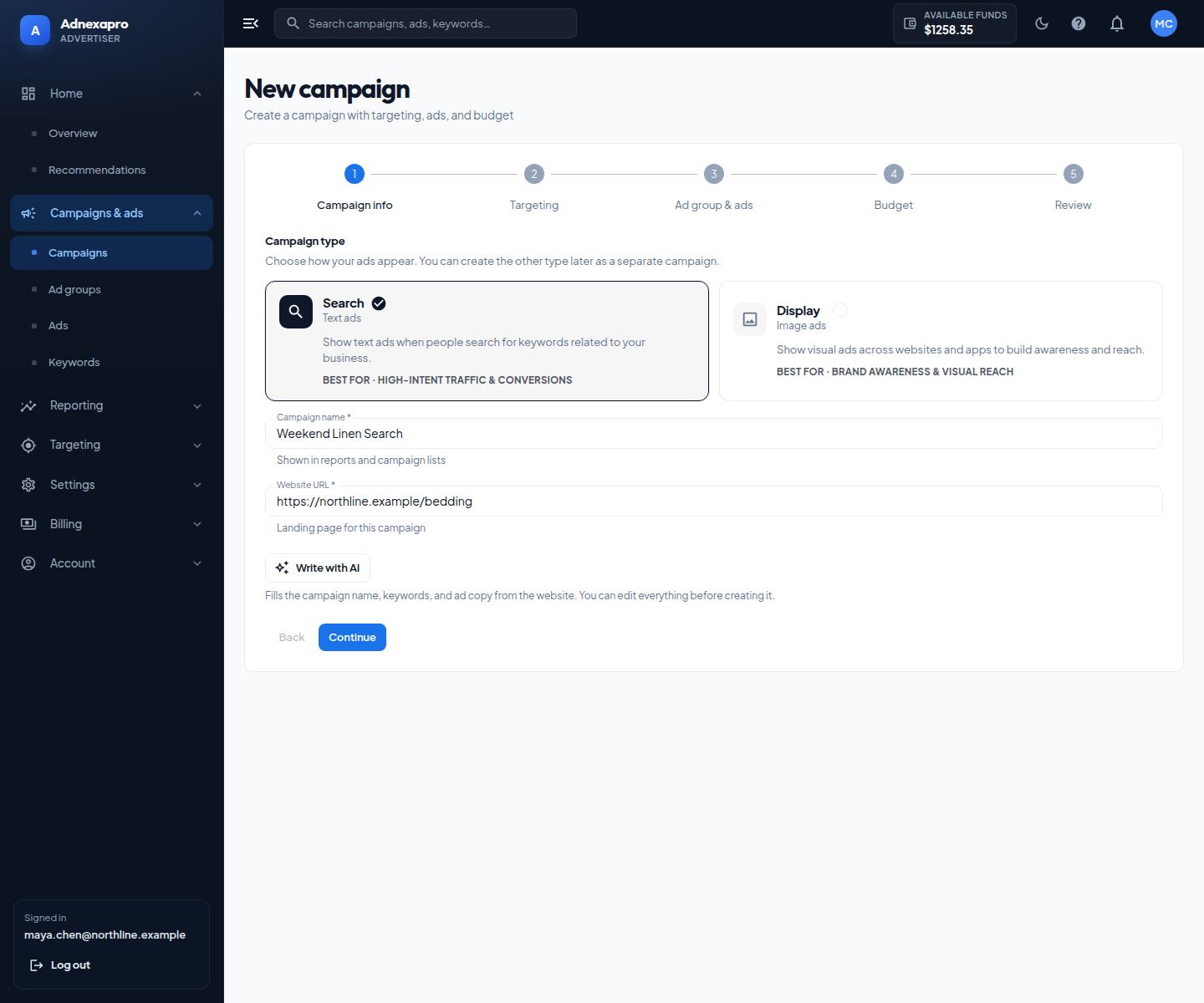
Choose how the ads appear. You can create the other type later as its own campaign.
- Search — text ads when people search for keywords related to the business. Best for high-intent traffic.
- Display — image ads across websites and apps. Best for awareness and visual reach.
The name is 3 to 120 characters and is what reports and the campaign list show. The website is the landing page the ad should open, for example https://northline.example/bedding. Write with AI can draft the name, keywords, and ad copy from that website. You can edit every field before you continue.
Step 2. Targeting
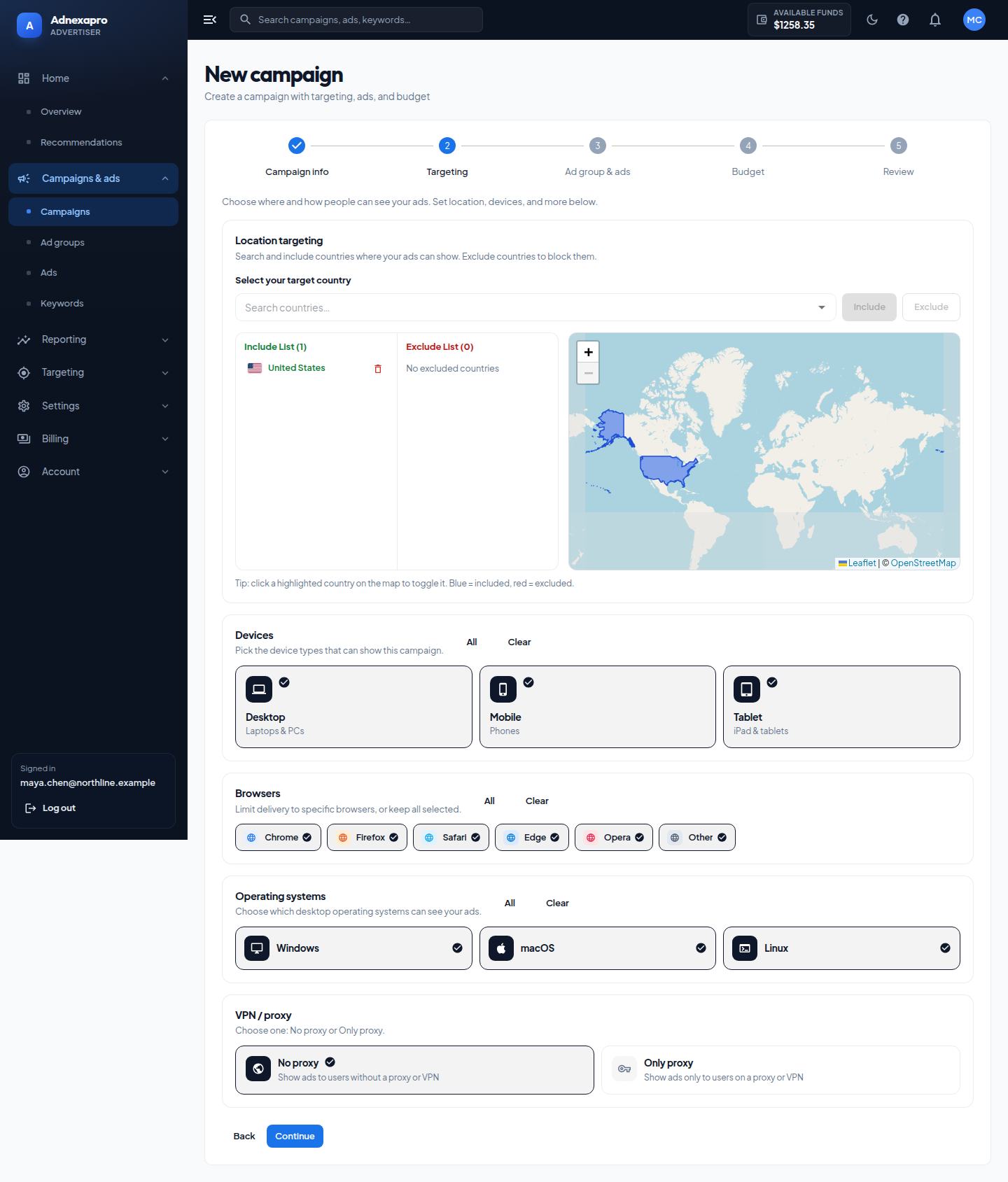
Search for a country and choose Include or Exclude. The map marks included countries in blue and excluded countries in red. At least one country is required. In the example, United States is included and nothing is excluded.
Then set who can see the ads:
- Devices — Desktop, Mobile, and Tablet. Use All or Clear, or pick them one by one.
- Browsers — Chrome, Firefox, Safari, Edge, Opera, and Other.
- Operating systems — Windows, macOS, and Linux.
- VPN / proxy — choose one. No proxy shows ads to people who are not on a proxy or VPN. Only proxy shows ads only to people who are.
Each group needs at least one choice. Targeting is a filter. If you leave only one country and one browser, delivery only happens when both match.
Step 3. Ad group and ads
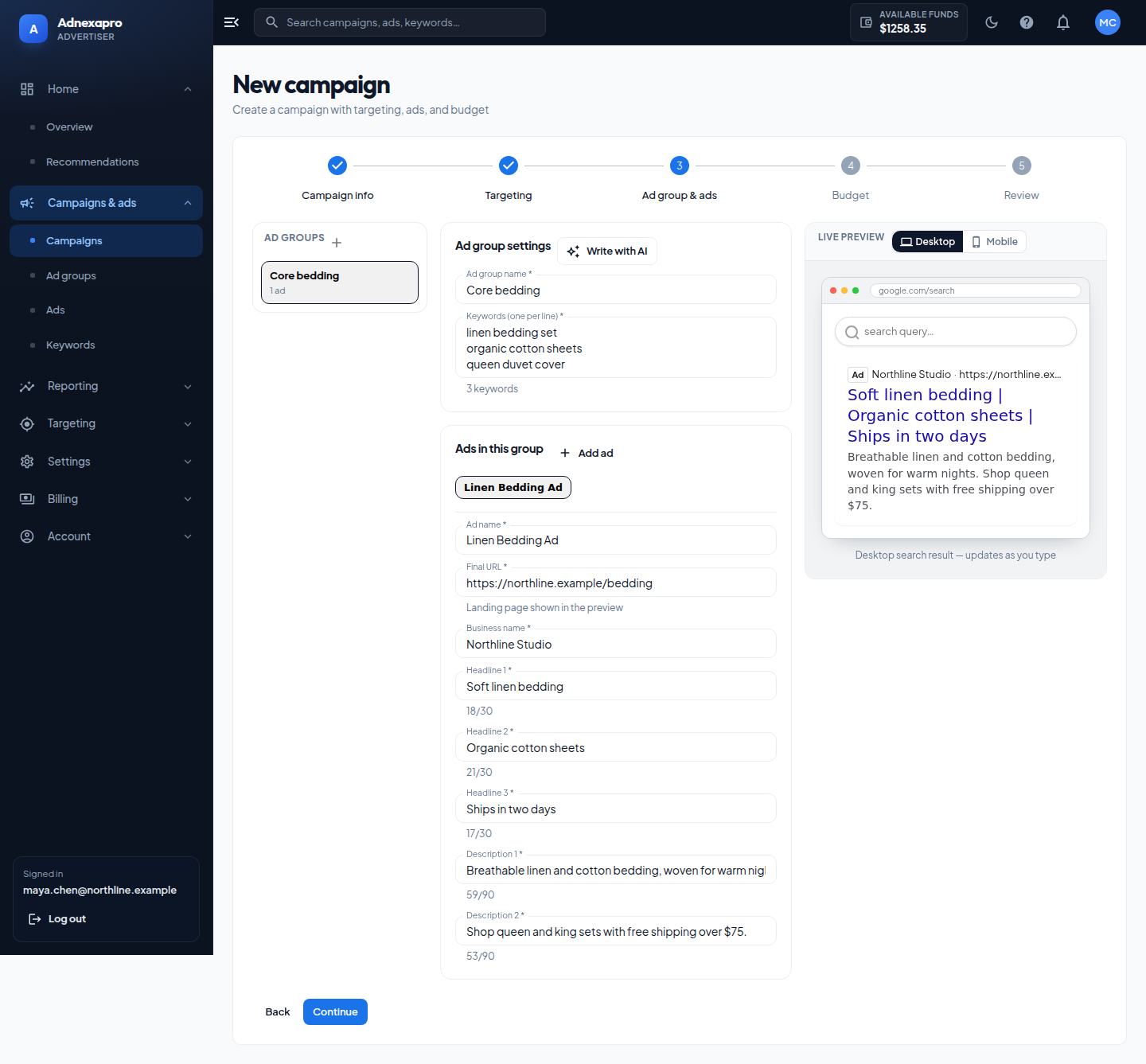
An ad group holds the keywords and the ads that share them. Name the group, then add keywords one per line. The example group is Core bedding, with linen bedding set, organic cotton sheets, and queen duvet cover.
Each search ad needs an ad name, a final URL, a business name, three headlines, and two descriptions. Headlines stay within 30 characters. Descriptions stay within 90. The live preview on the right shows the desktop or mobile search result while you type. For display campaigns this step asks for a headline, a description, a button, a logo, and images instead of keywords.
You can add another ad in the same group, or another ad group, when you want a different bid or a different message under the same campaign.
Step 4. Budget
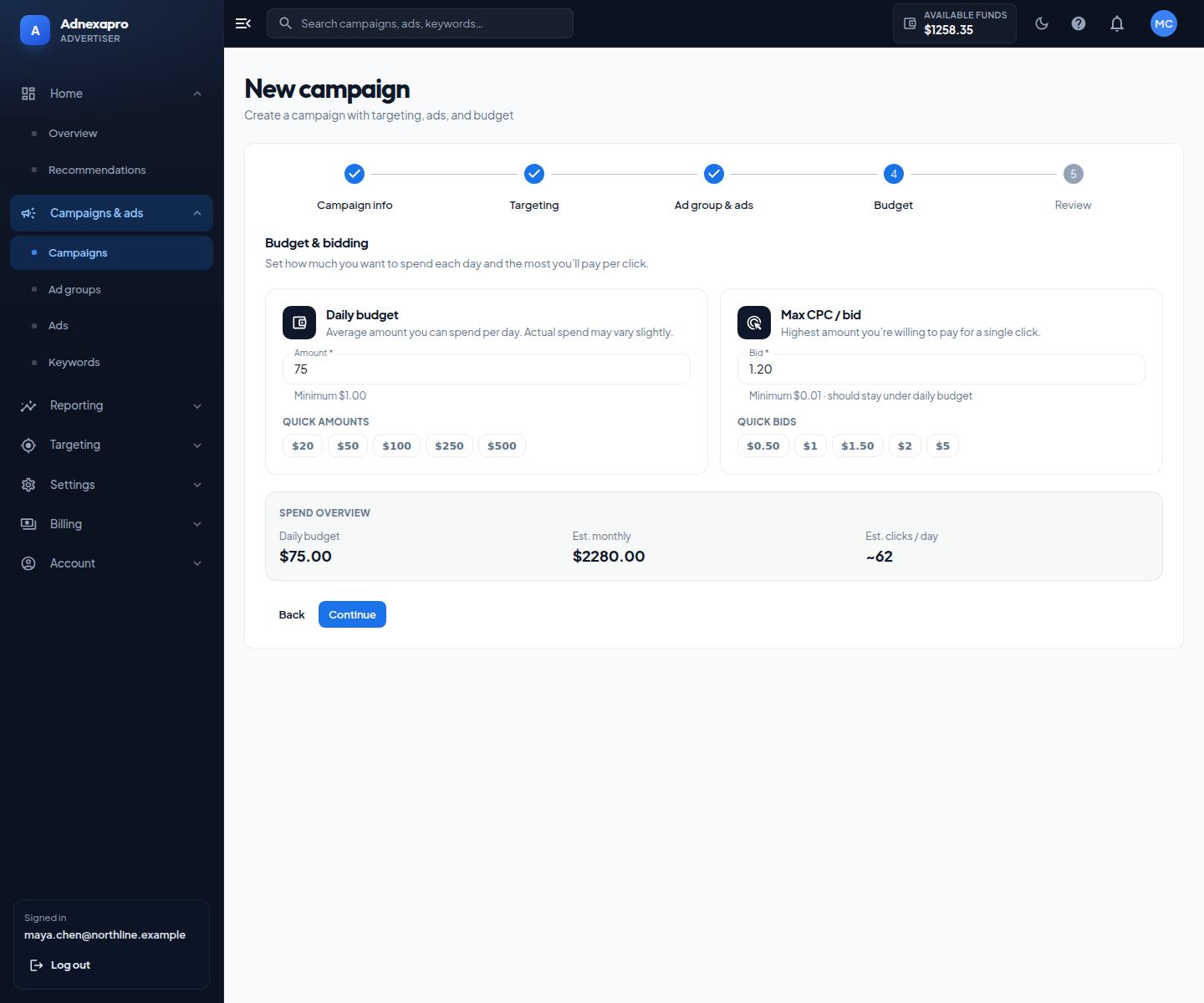
The daily budget is the average amount the campaign can spend per day. The minimum is $1. Quick amounts are $20, $50, $100, $250, and $500, or you can type your own. The example uses $75.
The bid is the most you will pay for one click. The minimum is $0.01, and it should stay under the daily budget. Quick bids are $0.50, $1, $1.50, $2, and $5. The example uses $1.20.
The spend overview turns those two numbers into an estimated month (daily budget times 30.4) and an estimated clicks per day (daily budget divided by the bid). At $75 and $1.20 that is about $2,280 a month and about 62 clicks a day. Delivery only spends what is in the account balance, and it stops at the budget you set.
Step 5. Review
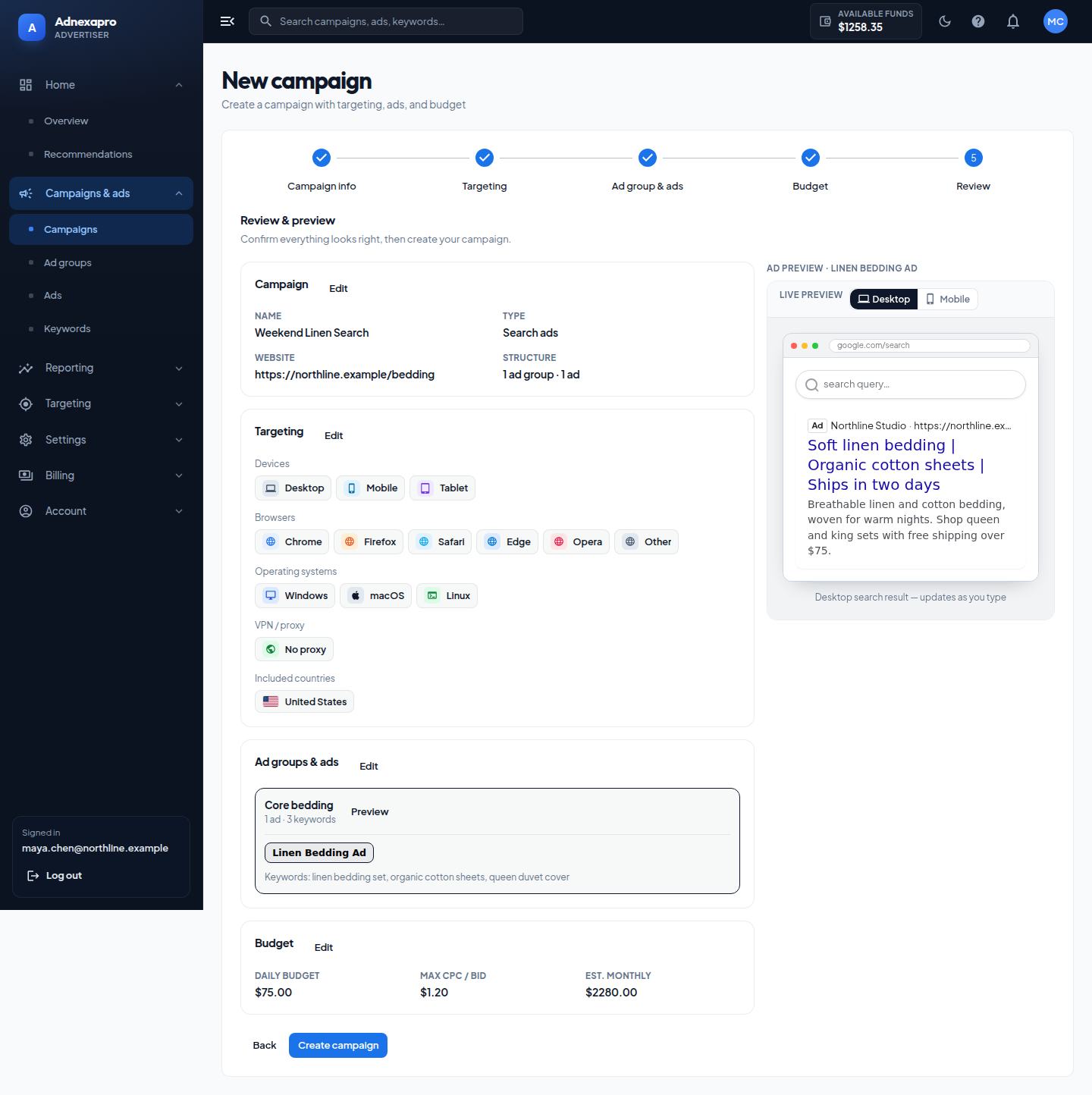
Review lists the campaign name, type, website, devices, browsers, operating systems, proxy choice, included countries, ad group, keywords, ad, daily budget, bid, and estimated month. Edit on any block jumps back to that step. The ad preview stays on the right.
Press Create campaign when the summary is right. The new ads start under review. They do not deliver until they are eligible and the campaign is active, funds are available, and any schedule allows the current time.
On the campaign list you can pause or activate a campaign, rename it, change the budget or bid, or delete it. Pausing stops spend even if the schedule window is open. Activating does not override a review rejection or an empty balance.
Ad groups
Ad groups sit inside a campaign. Open Ad groups to change status, name, or bid, or to delete a group. A campaign can hold more than one group when you want different bids or different ads under the same budget.
Ads and keywords
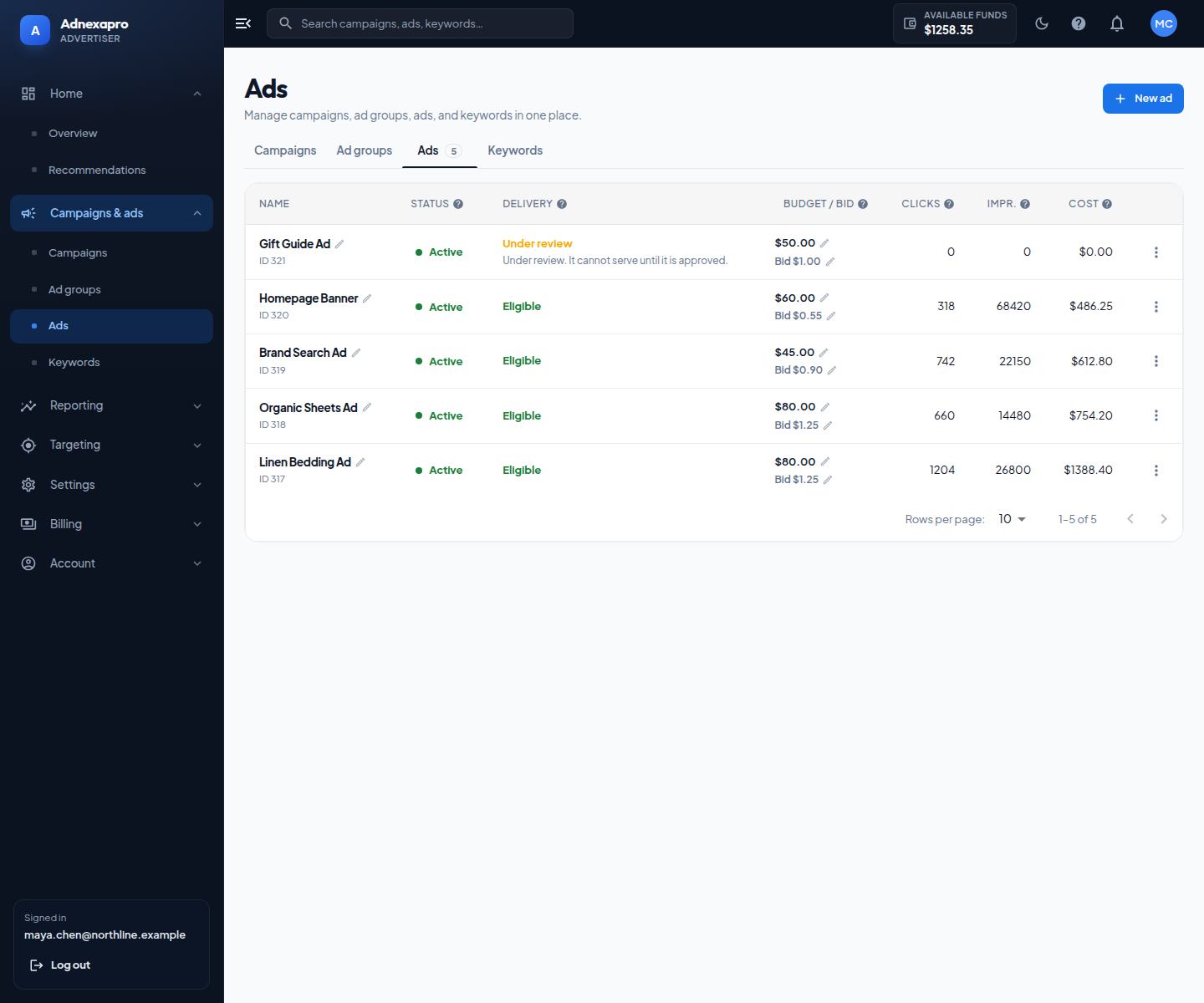
Open Ads to see every ad. Search ads are the headlines and description people read. Display ads are the images. Edit an ad from its row. A creative change can go back through review.
For display, reopen the ad if an image looks missing and confirm the logo and images still preview. Replace a failed upload. Use a common image type.
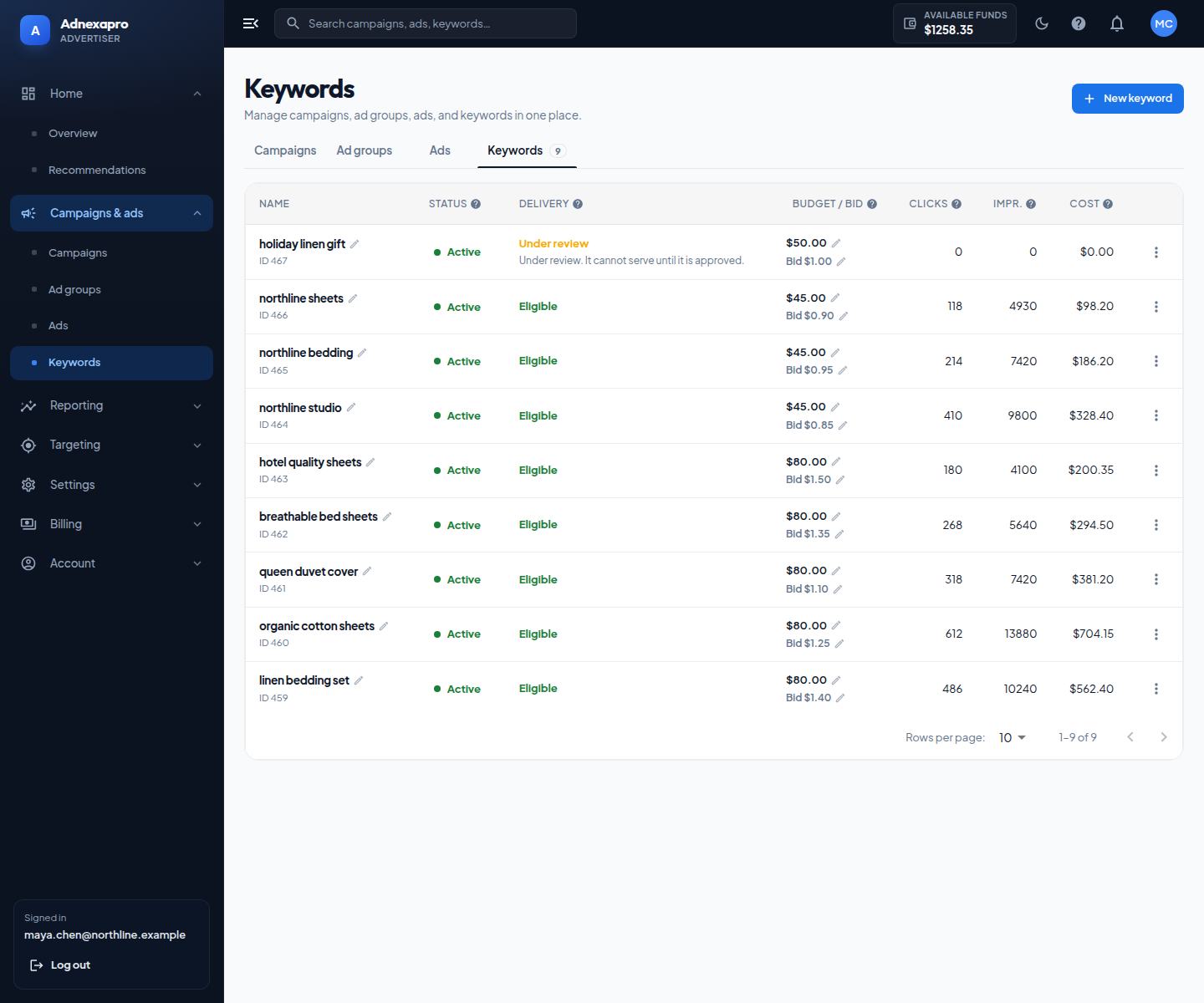
Keywords apply to search campaigns. Add the phrases you want to match. You can pause a keyword, rename it, change its bid, or delete it without deleting the campaign. A keyword that is not eligible after review will not serve until it is fixed and approved.
Targeting
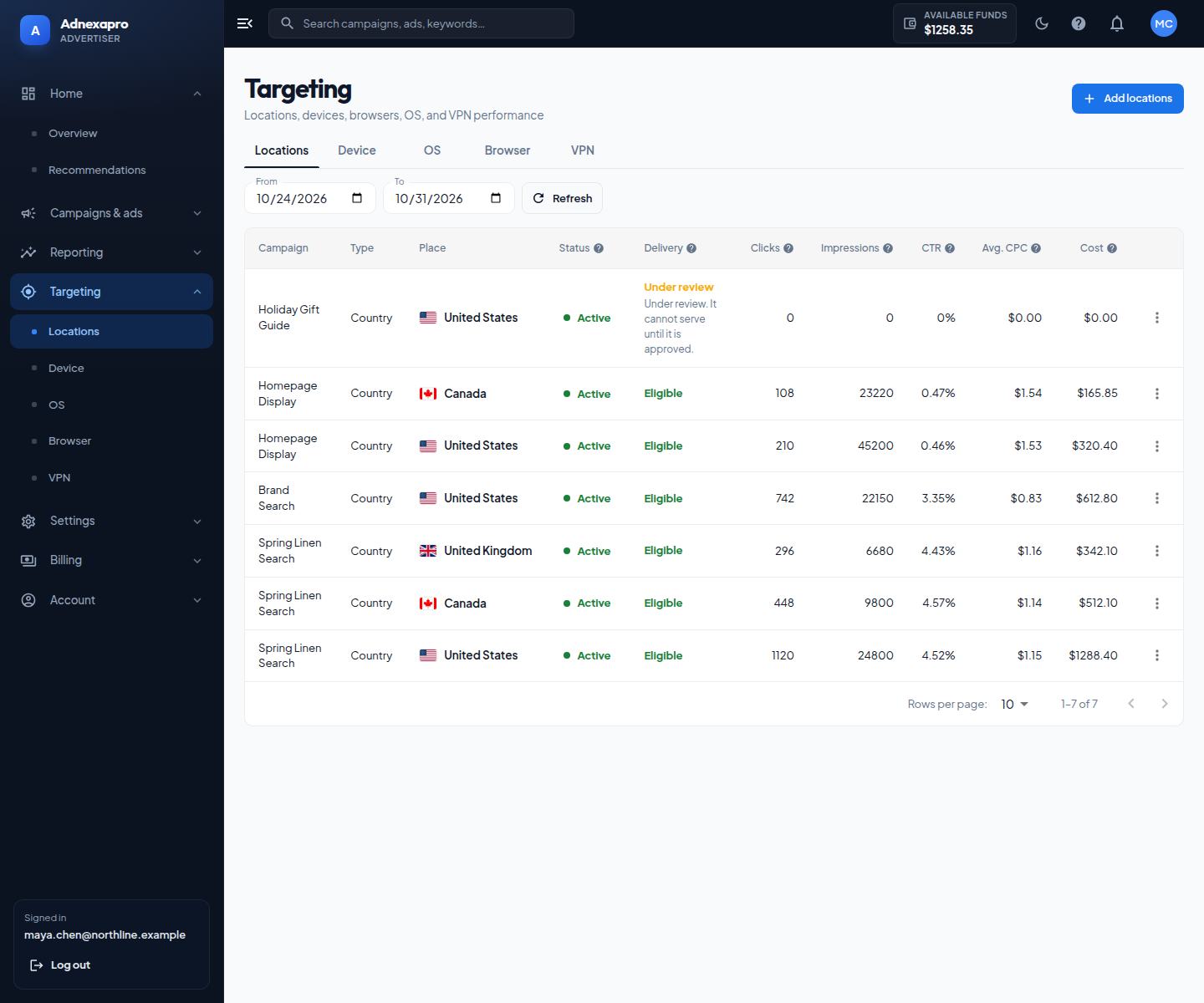
Targeting in the sidebar is the place to edit who can see ads after the campaign exists. Save before you leave. An empty location list means the campaign has nowhere to serve.
- Locations — countries, then states and cities inside those countries. Turn a row off to stop that place without deleting the rest.
- Device — Desktop, Mobile, and Tablet.
- OS — Windows, macOS, and Linux.
- Browser — Chrome, Firefox, Safari, Edge, Opera, and Other.
- VPN — no proxy, or only people on a proxy or VPN.
Targeting is a filter, not a boost. If you leave only one city and one browser, delivery only happens when both match.
Schedules and IP lists
Ad schedule under Settings limits when a campaign may deliver. Set the days and hours. A paused campaign still does not run inside an open window. If a campaign is active, eligible, funded, and the current time is outside the schedule, it waits.
IP lists are a whitelist and a blacklist. A blacklisted address is excluded. Use the whitelist when you only want specific addresses. Change history is the log of edits, so you can see what changed and when. Times in that log follow the timezone on your profile.
Review
New accounts and new ads start under review. Status on the account and on each ad is one of these:
- Unverified — the email is not confirmed yet.
- Under review — staff have not finished the check. This is not the same as paused. Wait, then open the ad.
- Active — eligible to deliver when funds, the campaign switch, targeting, and the schedule all allow it.
- Suspended — the account cannot run. Read the note on the profile and contact support from the account email.
If an ad is not eligible, read the note, fix the text, image, or URL, and resubmit. Copying the campaign does not clear a policy rejection. Restricted categories are listed on the restricted content page.
Billing
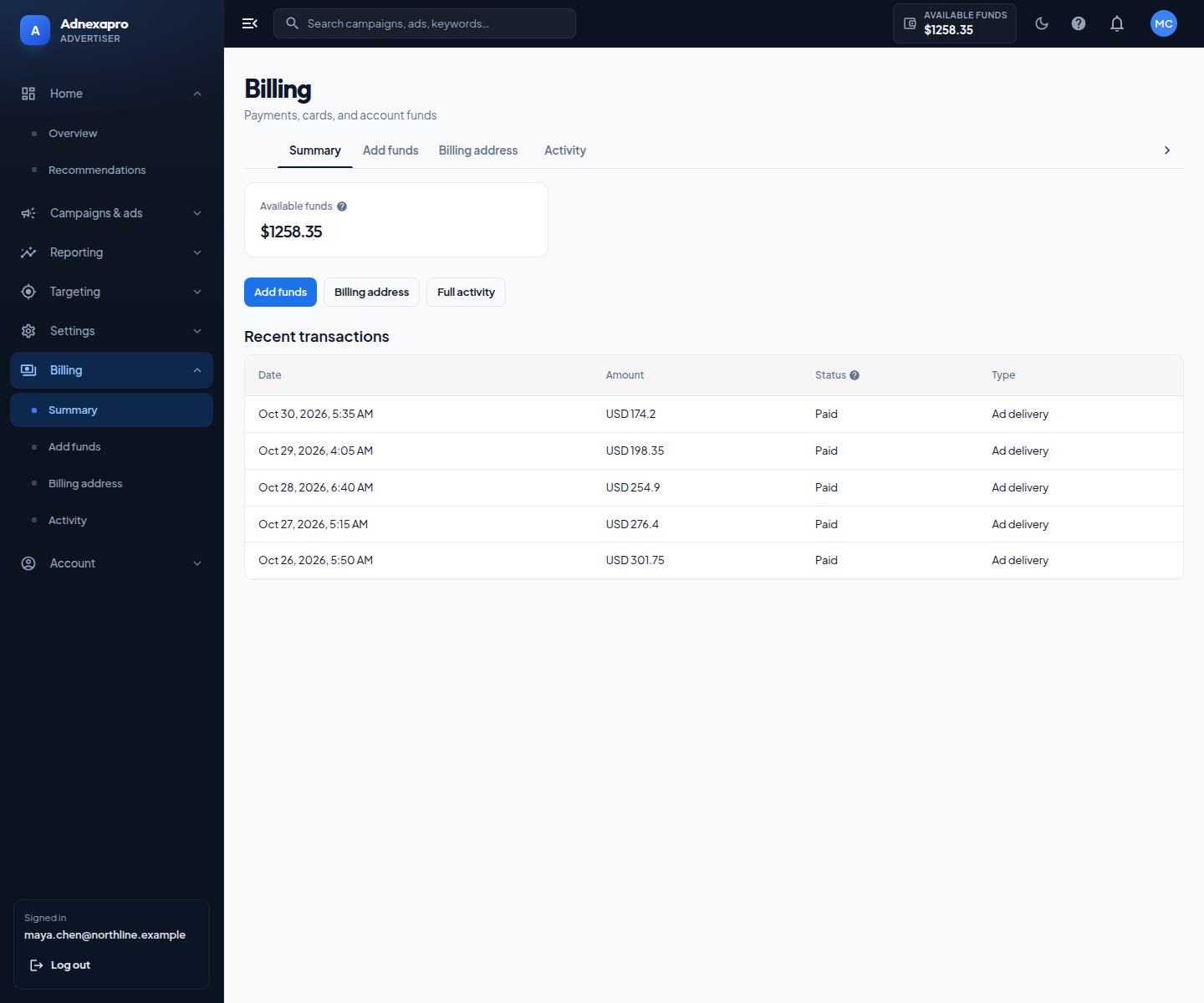
Open Billing, then Summary. Available funds is the prepaid balance in US dollars. Campaigns draw from this balance. A failed payment does not increase it.
Summary links to Add funds, the billing address, and full activity. Recent transactions list the date, amount, status, and type. Dates look like Oct 30, 2026, 4:45 PM, in your profile timezone.
Add funds
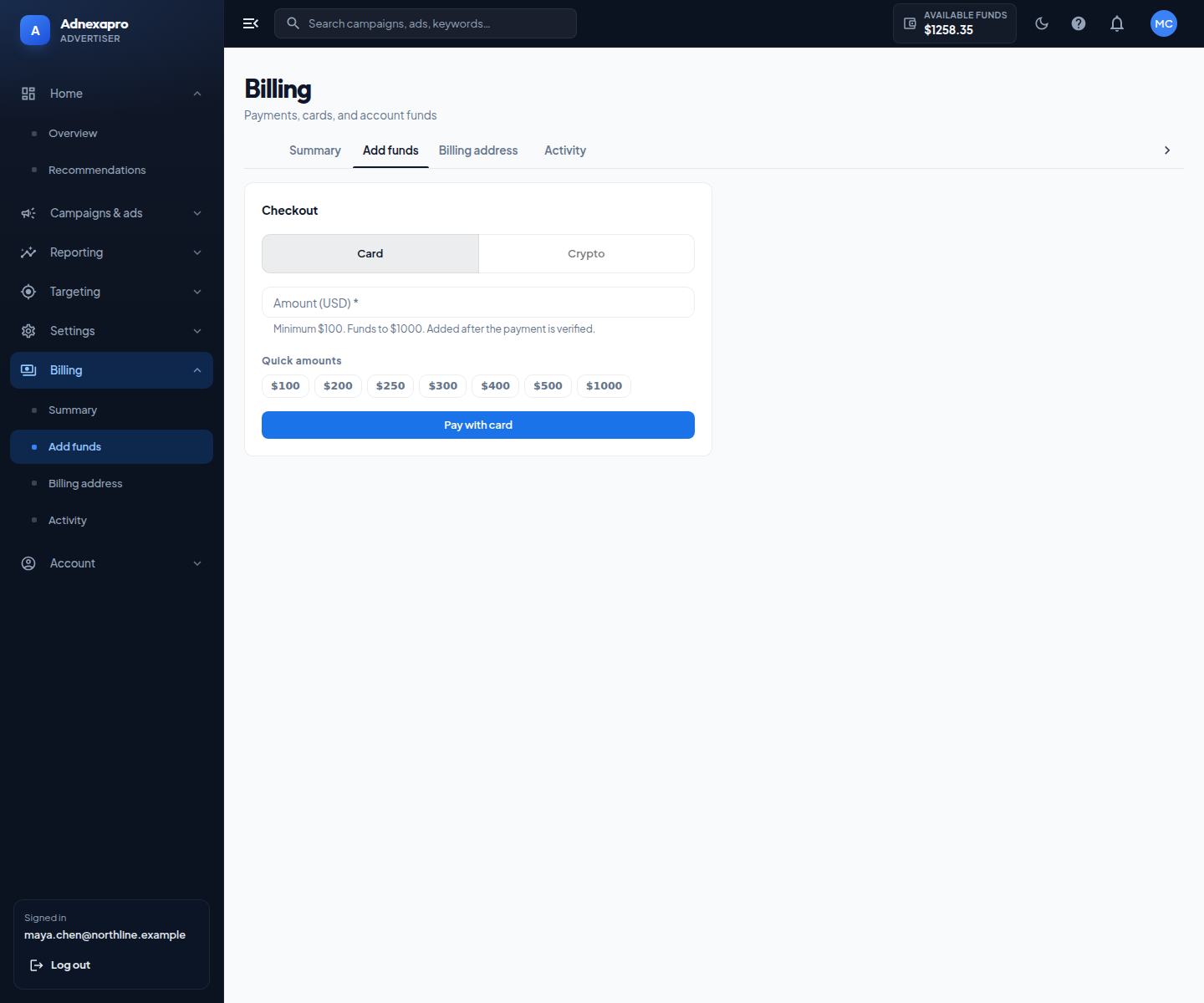
Amounts are $100 to $1,000. Pick a preset or type an amount in that range. Checkout has these tabs when they are turned on for the workspace:
- Card — pay by card. The button says Pay with card. The charge is described as online advertising services and a prepaid campaign budget.
- Add Card — pay with a saved card, or enter a new one. This tab is hidden when saved cards are not configured. Indian card payments need the name and billing address first. The page links to Billing address if that is missing.
- Crypto — send the asset shown, then submit the transaction hash. The payment stays under review until staff approve it. A rejected hash does not credit the balance.
Billing address is the name and address used on card payments and invoices. It is separate from the profile address. Activity is the full payment list, with an invoice you can open, print, or download as a PDF. Payment methods is where saved cards are added, removed, or set as the default. That menu item is hidden when saved cards are not available.
Unused funds follow the refund policy. They are not an automatic cash-out. Email support from the account address with the payment time and amount. Do not send a full card number.
Reports
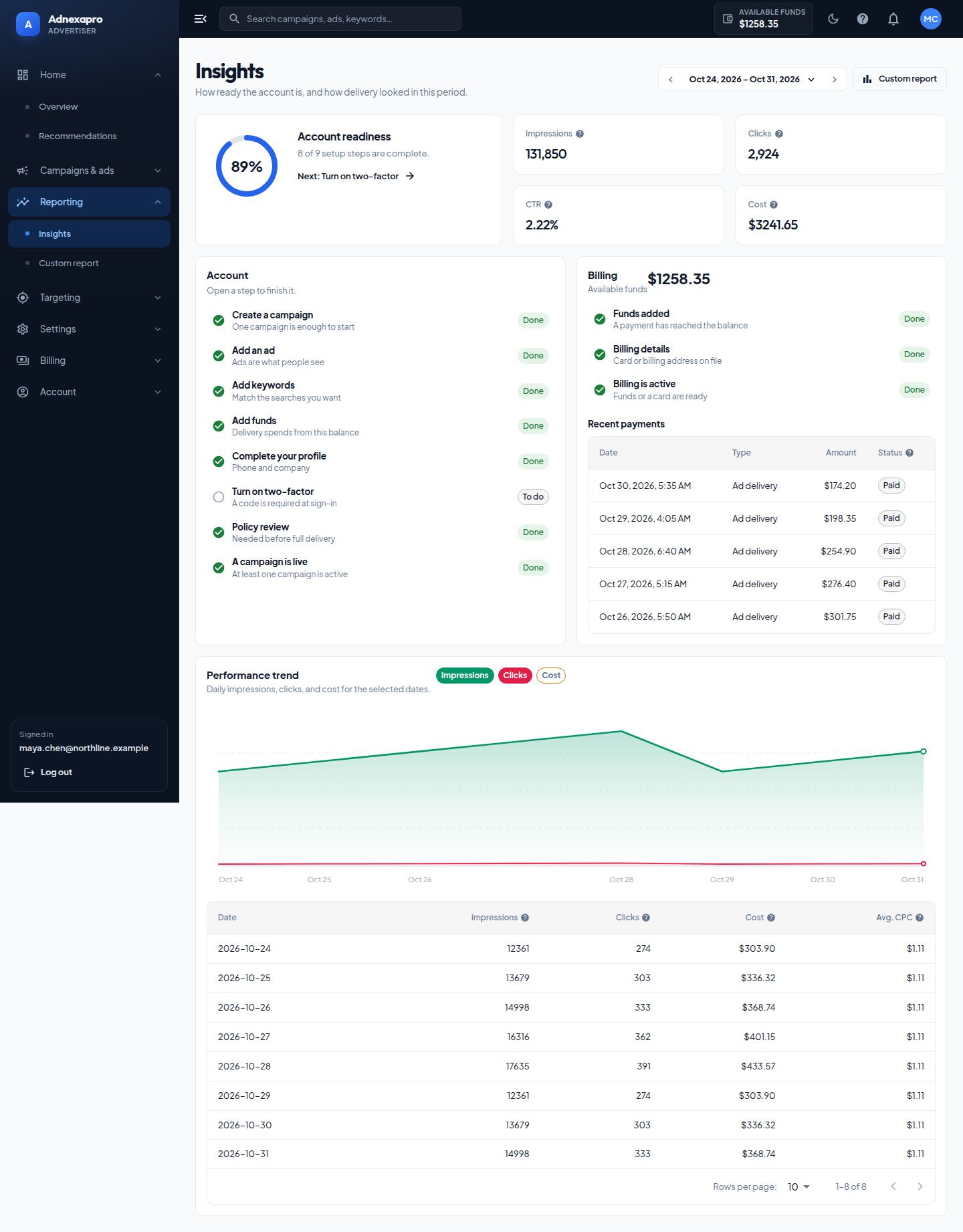
Insights is the longer report. It scores setup items such as creating a campaign, adding an ad, adding keywords, adding funds, completing the profile, and turning on two-factor. Billing checks cover funds, a payment method when cards are available, and the billing address. Each row links to the screen that finishes the task.
The same date range controls the chart and the totals for impressions, clicks, cost, and CTR. Recent transactions sit on this page so you can compare spend with payments.
Custom report is the place to pull a narrower cut of the same delivery data when the overview chart is too broad.
Account and timezone
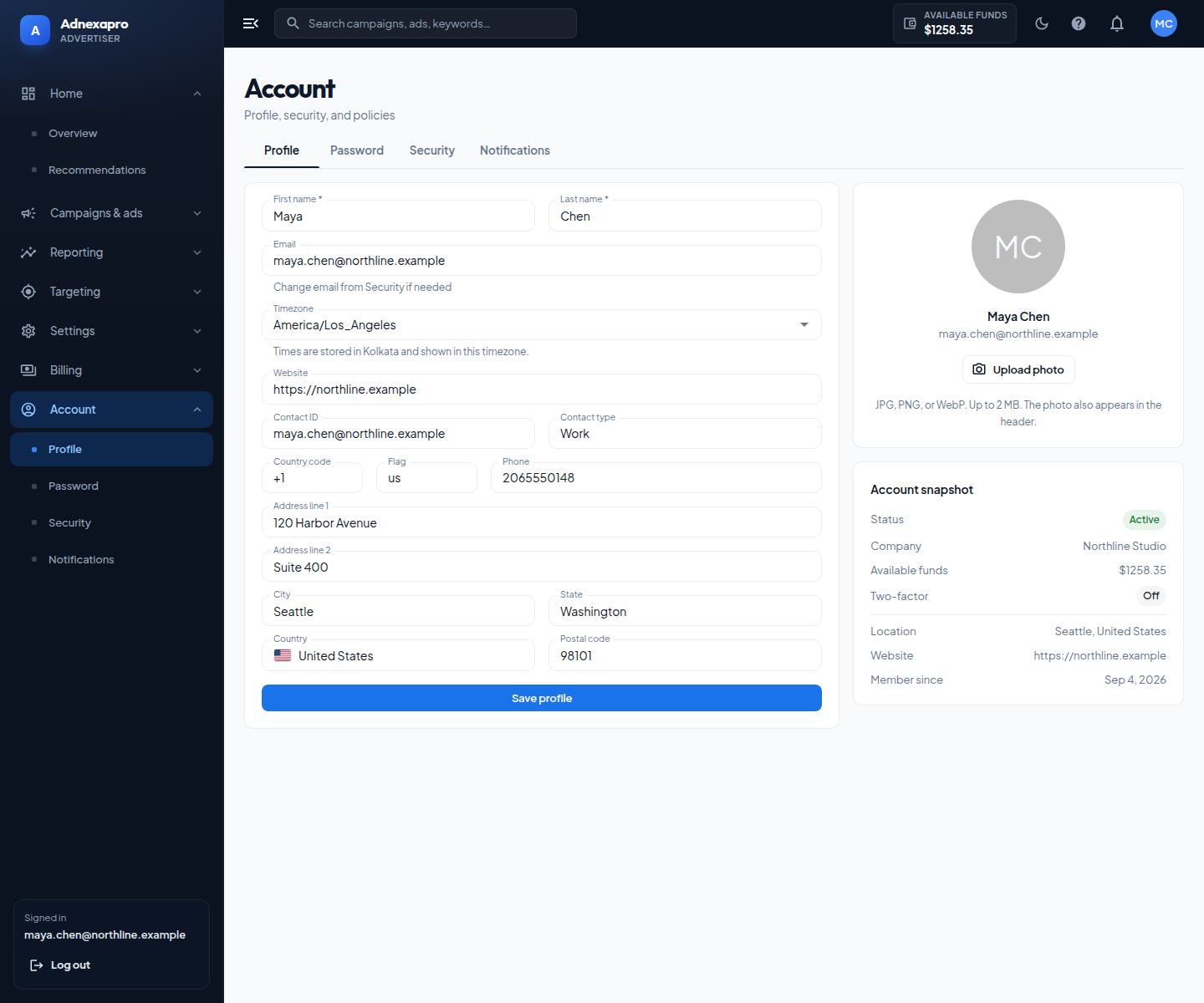
Open Account, then Profile. Save the name, company, phone, and website here. The snapshot on the right shows status, company, available funds, two-factor, location, website, and the date you joined.
Timezone controls how dates and times are shown to you. Values are stored in Asia/Kolkata and converted to the timezone you pick. The helper under the field says that. Charts, billing activity, change history, and the joined date follow this choice. Other advertisers are not affected. If the timezone is blank or not recognized, the workspace shows Kolkata time.
Password is a separate tab. After you save a new password you stay signed in on this browser. Other sessions are not closed unless you use Sign out everywhere.
Notifications lists messages sent inside the workspace. Mark them read from that list.
Security
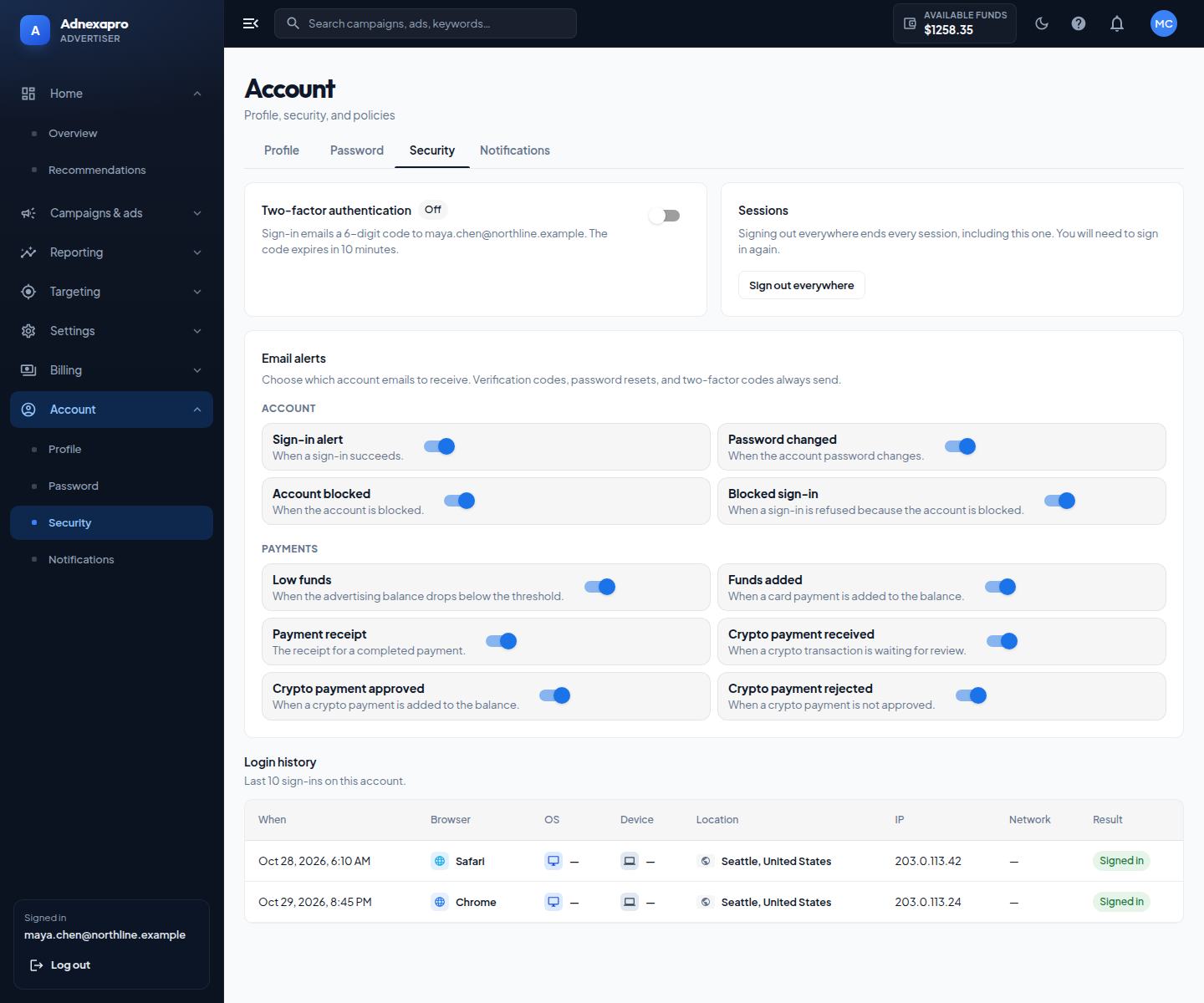
On Security:
- Two-factor authentication emails a 6-digit code at sign-in. Turn the switch on, enter the code, and confirm. The code expires in 10 minutes. Turning it off asks you to confirm.
- Sessions and Sign out everywhere end every login, including the one you are using. You will need to sign in again.
- Email alerts choose which account events are emailed. Verification, password reset, and the two-factor code are still sent when those actions happen.
- Login history lists when, browser, operating system, device, location, IP, network, and result for recent sign-ins. Times use your profile timezone.
The sidebar Log out button only clears this browser. Use Sign out everywhere when a password may have been seen on another device.
For a rejected ad or a payment you do not recognize, write from the account email. Include the campaign name or the payment time and amount. Support is [email protected].